
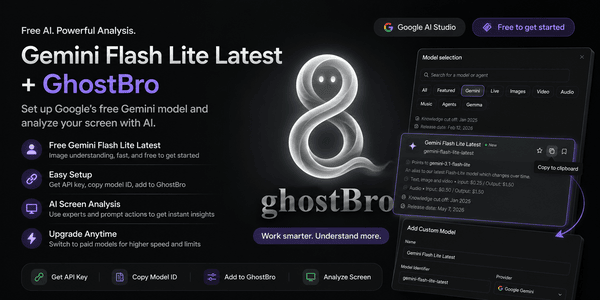
Free Gemini Flash Lite Latest + GhostBro: Setup Guide for Free AI-Powered Screen Analysis
If you’re looking for a free AI model to use with GhostBro, Google’s Gemini Flash Lite Latest is currently one of the easiest options to get started with.
In this guide, you’ll learn how to:
Create a Google AI Studio account
Find free Gemini models
Copy the model identifier
Connect the model to GhostBro
Analyze your screen using GhostBro’s AI Analysis feature
The entire setup can be completed in just a few minutes.
Why Use Gemini Flash Lite Latest?
Google AI Studio provides access to several Gemini models for experimentation and development.
Some models displayed inside AI Studio can only be used within the playground and are not available through the free API tier.
For example, you may see models such as:
Gemini 3.5 Flash
Gemini 3.5 Pro
Other experimental models
These models might appear selectable inside AI Studio, but when used through an external application you may receive API errors indicating that the model is not available for your account or free tier.
After testing multiple options, Gemini Flash Lite Latest is one of the models that works well with GhostBro and can be used for free (subject to Google’s limits and policies).
Benefits include:
Free access
Fast response times
Supports image analysis
Works well for GhostBro screen analysis
Simple setup
Step 1: Create a Google AI Studio Account
Open Google AI Studio:
Sign in using your Google account.
If this is your first visit, Google may ask you to accept the terms and create an AI Studio workspace.
Once completed, you’ll be taken to the main dashboard.
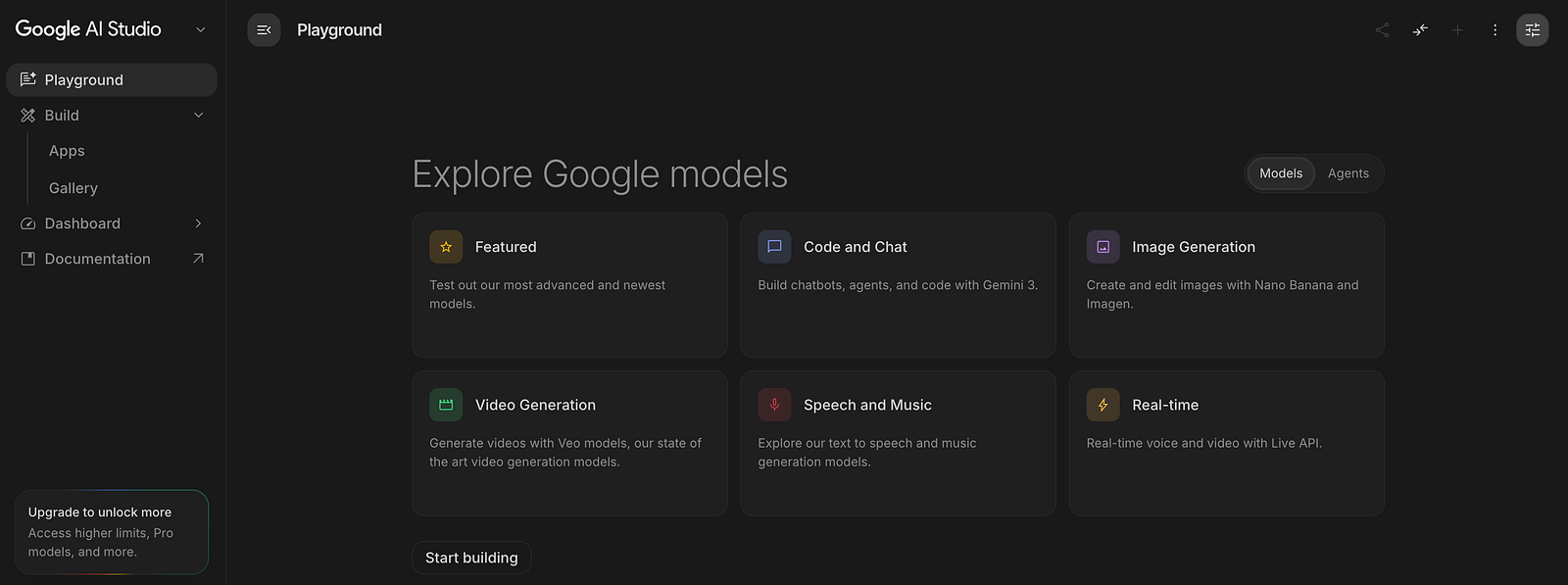
Step 2: Open the Playground
Navigate to:
https://aistudio.google.com/prompts/new_chat
You should see the Playground interface where Google allows you to test Gemini models.
Step 3: Open Model Settings
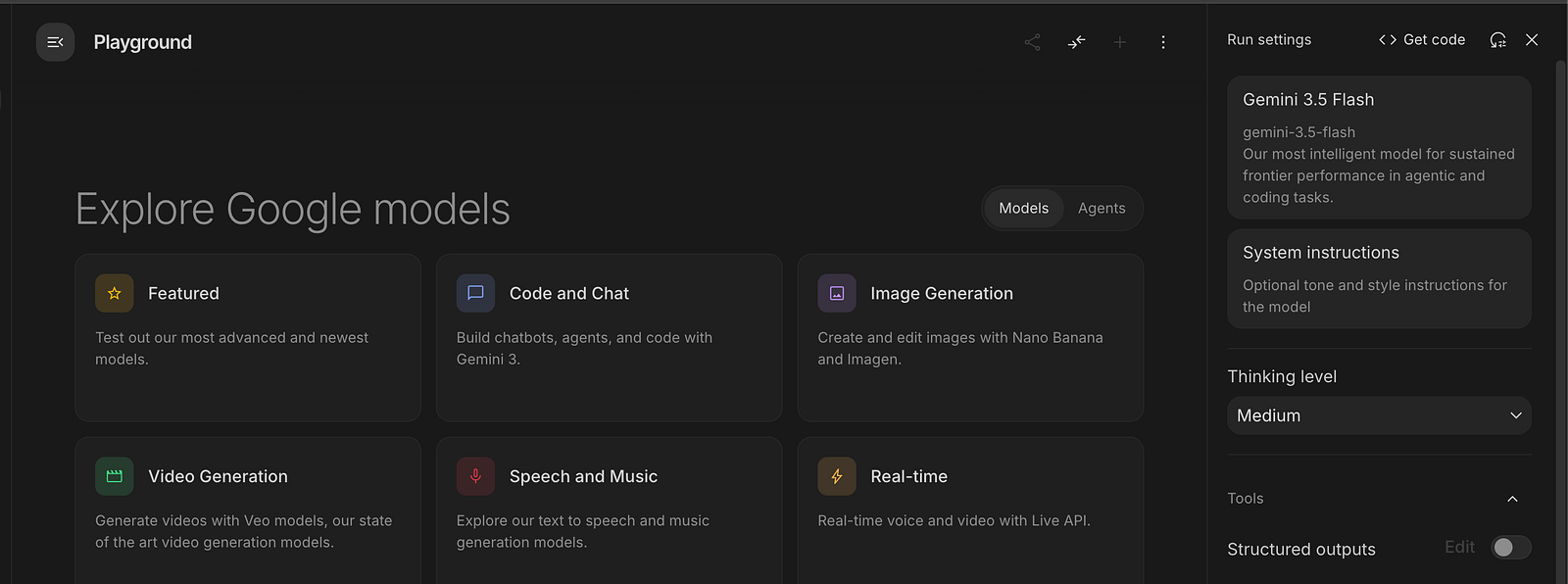
On the right side of the Playground, click the Settings icon.

A configuration panel will appear.
Inside this panel you’ll see the currently selected model.
In the example below, the selected model is Gemini 3.5 Flash.
Important
Just because a model appears in AI Studio does not mean it can be used for free through external applications.
Some models are restricted to AI Studio testing only.
If you configure one of these restricted models in GhostBro, requests may fail with an error indicating that the model is unavailable.
Step 4: Browse Available Models
Click the model card inside the settings panel.
A model selection dialog will open.
Here you’ll see all Gemini models available to your account.
Look for:
Gemini Flash Lite Latest
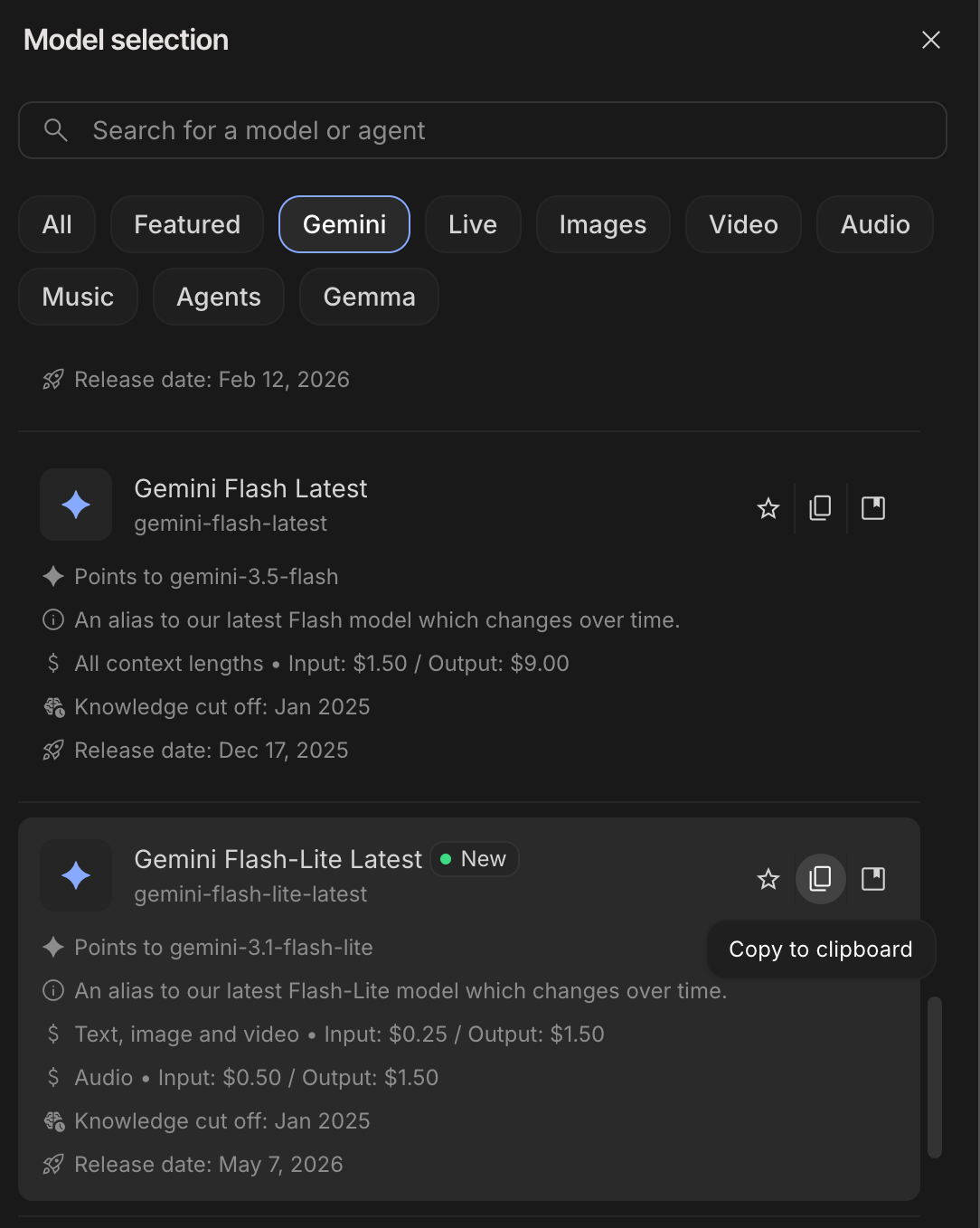
Model identifier:
gemini-flash-lite-latestThis model currently works well with GhostBro’s screen analysis and transcription AI insights features.
Why This Matters
GhostBro’s screen analysis requires a model that supports image understanding.
When browsing models, pay attention to whether the model supports image input. Some models are designed primarily for text-based tasks and may not be suitable for screen analysis.
Gemini Flash Lite Latest currently provides a good balance of:
Free access
Image understanding
Step 5: Copy the Model Identifier
When you find Gemini Flash Lite Latest, click the Copy to Clipboard button.
Google AI Studio will copy the model identifier:
gemini-flash-lite-latestYou’ll need this value inside GhostBro.
Step 6: Create an API Key
Open:
https://aistudio.google.com/app/apikey
Create a new API key and copy it.
Keep this key secure.
You’ll use it inside GhostBro.
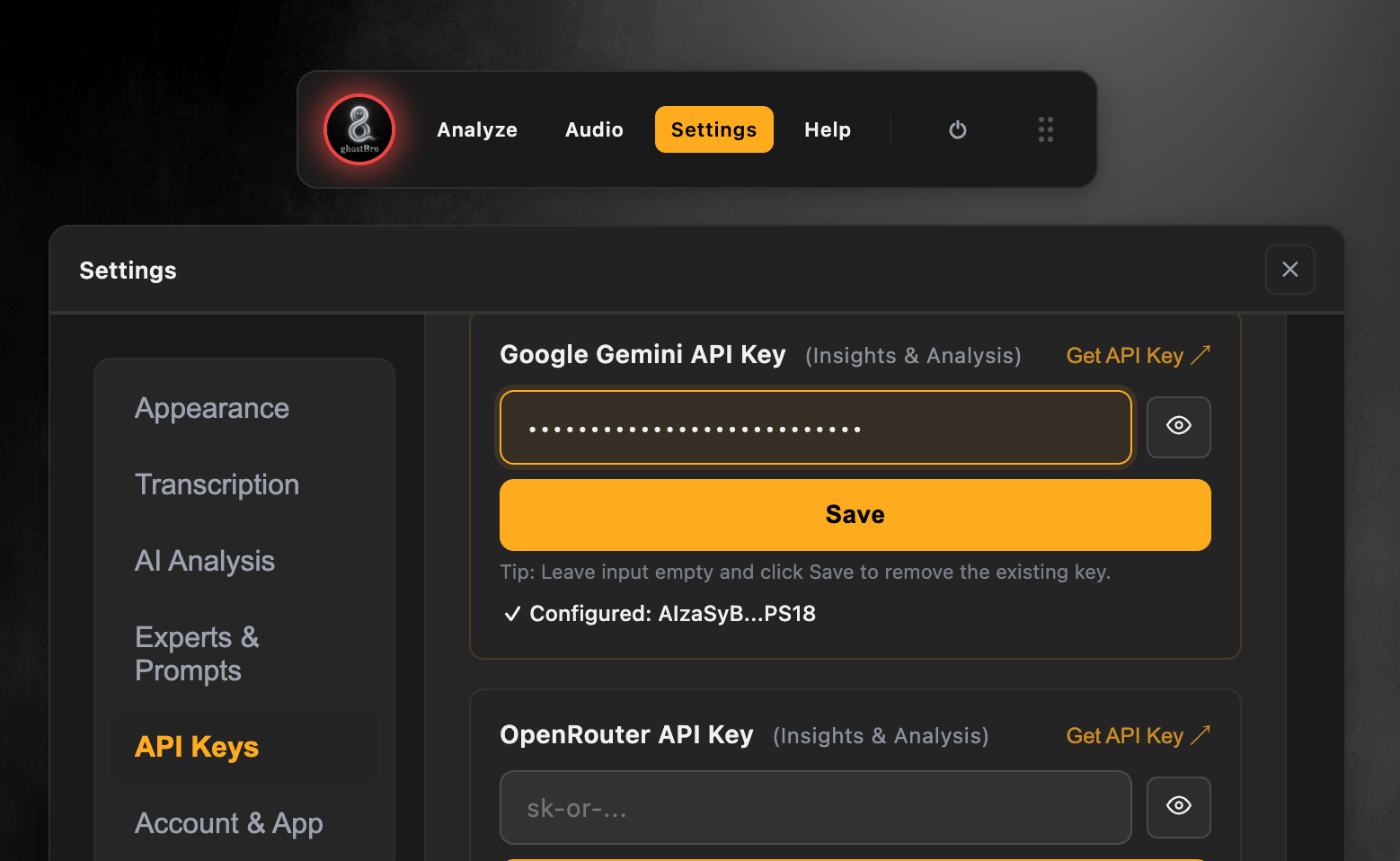
Step 7: Open GhostBro AI Settings
Launch GhostBro.
Navigate to:
Settings
→ API Keys
Paste your Google API key into the provider configuration and click save.
Step 8: Add a Custom Model
Click on the AI Analysis section, then scroll to AI models — Add Custom Model:
Fill the form:
Name
Gemini Flash LiteModel Identifier
gemini-flash-lite-latestProvider
Google GeminiClick Add Model button.
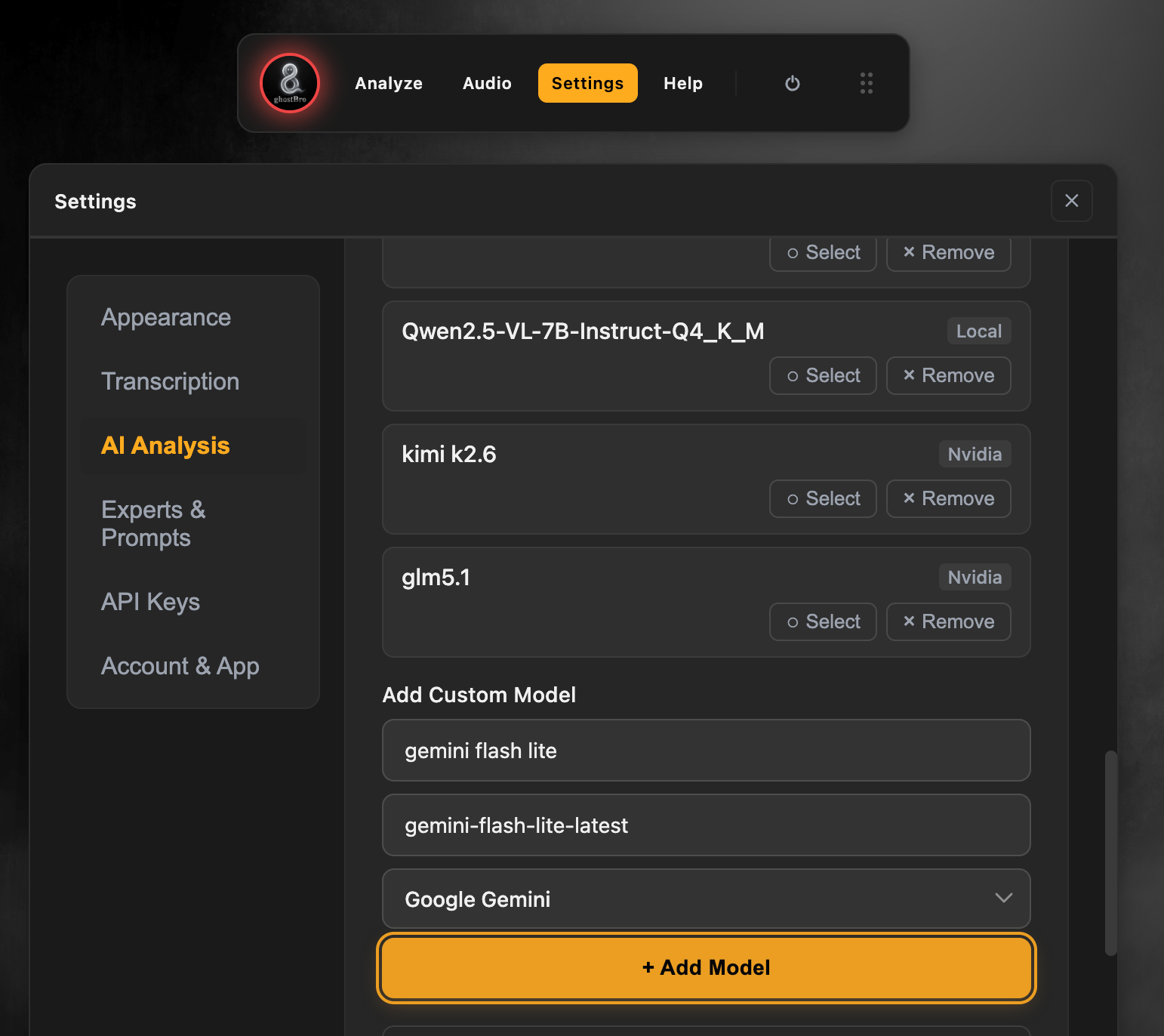
GhostBro will now include the model in the available AI list.
Step 9: Open the Analyse Panel
You can open the analysis interface in two ways.
Keyboard Shortcut
macOS
⌘ + 1Windows
Ctrl + 1Or
Click:
Analysefrom the main GhostBro panel.
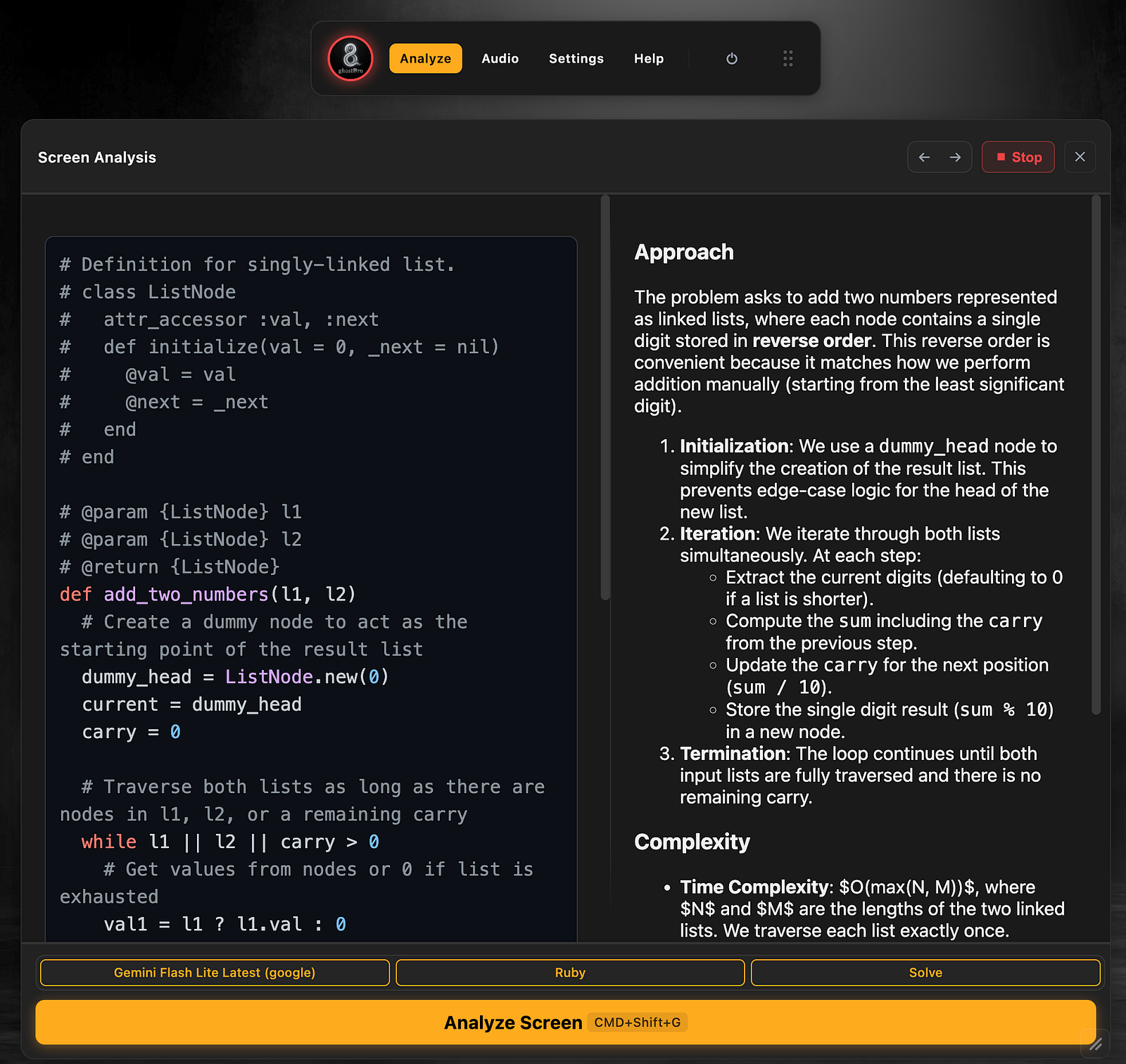
Step 10: Configure Your Analysis
Inside the Analyse panel:
Select Model
by click on the button from the footer of the panel.
Gemini Flash Lite Latest(google)Select Expert
Choose the expert that matches your workflow.
Examples:
Technical Interview Assistant
Product Manager
Meeting Assistant
Code Reviewer
Custom Experts
Ruby
Select Prompt Action
Choose the action you want GhostBro to perform.
Examples:
Explain
Summarize
Extract Action Items
Identify Problems
Suggest Improvements
Custom Prompt Actions
Solve
Step 11: Analyze the Screen
Once everything is configured:
Click
Analyse Screenor use the shortcut:
⌘ + G(macOS)
or
Ctrl + G(Windows)
GhostBro will capture the current screen context and send it to Gemini Flash Lite Latest for analysis.
Within seconds you’ll receive AI-generated results based on the selected expert and prompt action.
What Can You Do With This Setup?
Some practical use cases include:
Technical Interviews
Analyze coding challenges
Understand system design diagrams
Explain unfamiliar code
Generate implementation ideas
Meetings
Summarize discussions
Extract action items
Identify decisions
Generate follow-up notes
Learning
Explain technical concepts
Review documentation
Analyze architecture diagrams
Break down complex screens
Productivity
Review tickets
Analyze dashboards
Understand reports
Generate quick summaries
One of GhostBro’s Biggest Advantages
GhostBro is not limited to a single workflow.
The platform is heavily customizable:
Create your own Experts
Create custom Prompt Actions
Customize prompts
Build reusable templates
Switch between AI providers
Add custom models
Control how AI responds
This means you’re not locked into a predefined experience.
You can adapt GhostBro to your own interview process, meetings, learning workflow, or daily work.
All data remains under your control, and GhostBro gives you the flexibility to build workflows that match the way you work.
Final Thoughts
If you’re looking for a free way to start using AI-powered screen analysis, Gemini Flash Lite Latest is currently one of the easiest options available through Google AI Studio.
The setup takes only a few minutes:
Create a Google AI Studio account.
Create an API key.
Copy the model identifier
gemini-flash-lite-latest.Add it to GhostBro.
Open the Analyse panel and start analyzing your screen.
For users who want a free AI provider with image understanding and fast responses, this is an excellent starting point before exploring more advanced paid models.