
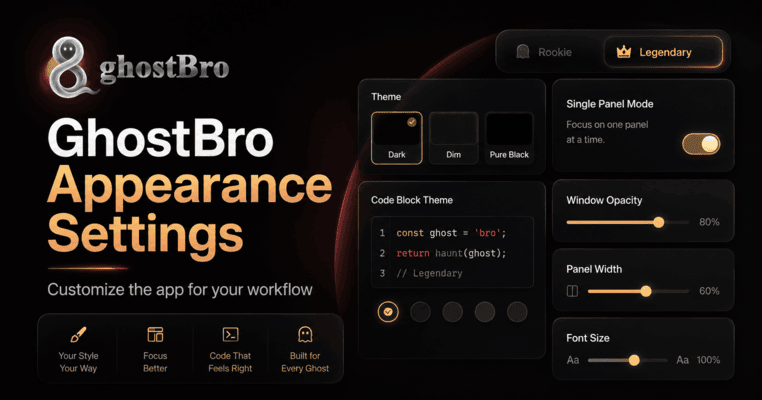
GhostBro Appearance Settings: Customize the App for Your Workflow
GhostBro is built for real work: meetings, interviews, technical discussions, brainstorming sessions, and moments where you need useful AI support without fighting the interface. That is why the Settings → Appearance section is more than a visual preference screen. It lets you adjust how GhostBro looks, behaves, and feels during daily use.
Some users prefer a clean mouse-driven workflow with visible controls. Others want a faster, keyboard-first setup that stays out of the way. Some need a bright interface. Others work best with a dark, low-distraction window. The Appearance settings are designed to support all of these workflows.
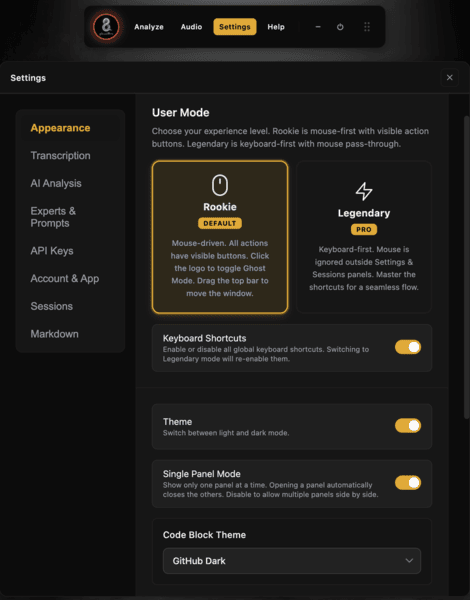
The Appearance section gives you control over user mode, shortcuts, theme, panel behavior, code block styling, opacity, width, and font size.
User Mode: Rookie or Legendary
The first choice in Appearance is User Mode. This controls how you interact with GhostBro. The goal is simple: choose the experience that matches your confidence and working style.
Rookie Mode
Rookie is the default mode. It is designed for users who prefer a mouse-first experience with visible action buttons. This mode is easier to understand when you are getting started because the important controls are visible and predictable.
In Rookie mode, you can click the logo to toggle Ghost Mode and drag the top bar to move the window. It is a practical setup for users who want clear controls instead of relying only on shortcuts.
Legendary Mode
Legendary is for users who prefer a faster keyboard-first workflow. In this mode, GhostBro expects you to use shortcuts and keeps the mouse interaction more minimal. This is useful when you want the app to stay out of your way while you focus on the meeting or task in front of you.
Legendary mode is best for power users who already know their flow and want to move quickly between analysis, audio, prompts, sessions, and other panels.
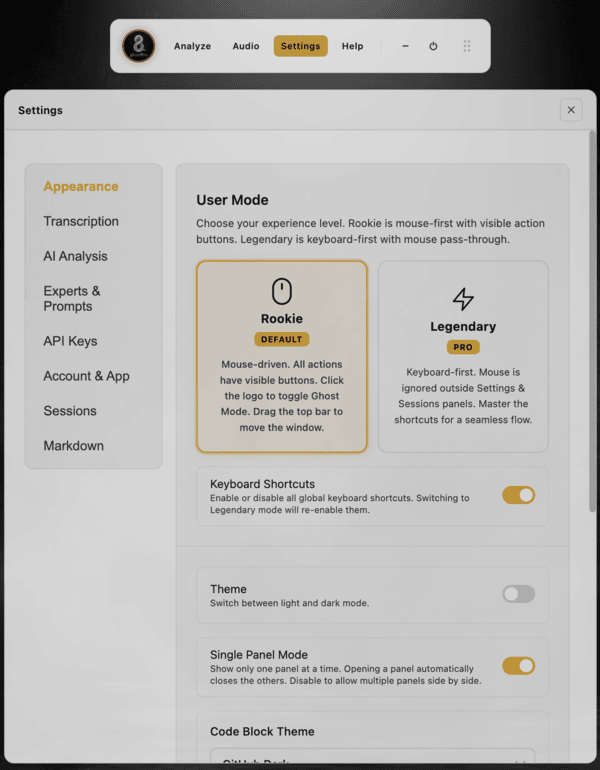
GhostBro supports both dark and light modes, so you can choose the interface that feels more comfortable.
Keyboard Shortcuts
The Keyboard Shortcuts option lets you enable or disable global shortcuts. This is useful when you want full control over when GhostBro reacts to keyboard commands.
If you switch to Legendary mode, shortcuts are automatically re-enabled because that mode is designed around a keyboard-first workflow. For most users, keeping shortcuts enabled gives the smoothest experience, especially during live conversations where speed matters.
Theme: Dark Mode and Light Mode
GhostBro supports both dark mode and light mode. Dark mode follows the app’s premium visual direction: deep black panels, subtle borders, warm amber accents, and clean contrast. It works well for long sessions, late work, and low-distraction setups.
Light mode is useful when you prefer a brighter interface or when your environment makes dark UI harder to read. The important part is that GhostBro does not force one visual style on every user. You can switch based on your environment and personal preference.
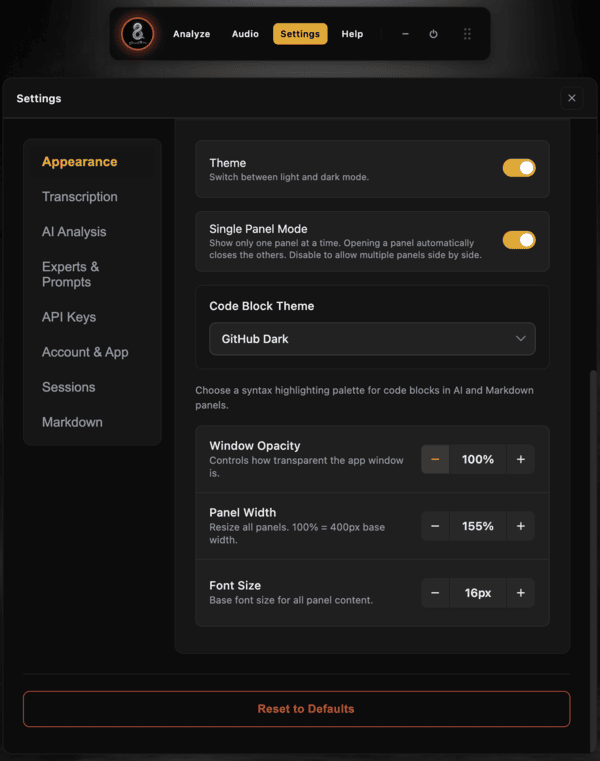
Appearance controls help you tune GhostBro for comfort, readability, and focus.
Single Panel Mode
Single Panel Mode keeps the interface focused by showing only one panel at a time. When you open a new panel, GhostBro automatically closes the previous one.
This is helpful if you want a clean workspace and do not want multiple panels competing for attention. If you prefer to compare information side by side, you can disable Single Panel Mode and allow multiple panels to stay open.
Code Block Theme
GhostBro often works with technical content: code snippets, architecture notes, debugging ideas, terminal commands, API examples, and AI-generated explanations. The Code Block Theme setting lets you choose how syntax highlighting appears inside AI and Markdown panels.
Available themes include options such as One Dark, GitHub Dark, GitHub Light, Dracula, Monokai, Nord, and Solarized Dark.
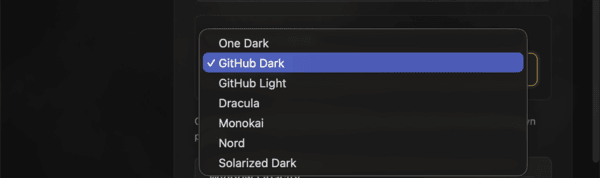
Choose a code block theme that matches your reading preference and coding environment.
This may look like a small detail, but it matters when you read technical answers during a meeting or interview. Good syntax highlighting makes code easier to scan, especially under pressure.
Window Opacity
The Window Opacity control changes how transparent the GhostBro window is. At 100%, the app is fully visible and easiest to read. Lower opacity makes the interface more transparent, which can help when you want GhostBro to blend into your workspace.
This is especially useful when you need to keep context visible behind the app. For example, you may want to see a meeting window, notes, code editor, or browser content while still keeping GhostBro available.
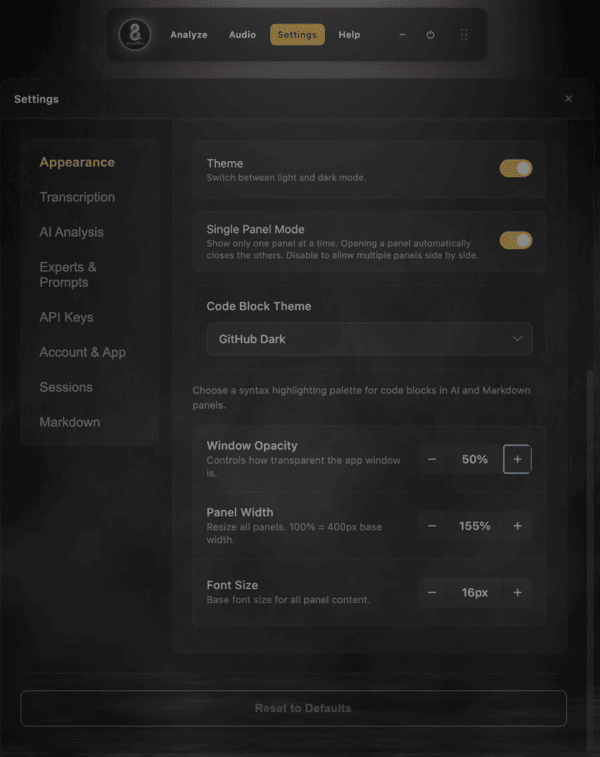
Window opacity helps GhostBro stay visible without fully blocking your workspace.
Panel Width
The Panel Width setting lets you resize all panels. The default base is calculated from 100% = 400px, and you can increase or decrease it depending on how much space you want GhostBro to use.
A wider panel is useful for reading longer AI responses, technical explanations, summaries, or markdown content. A narrower panel works better when you want GhostBro to stay compact.
Font Size
The Font Size setting controls the base font size for panel content. This is important because GhostBro is often used in situations where readability matters.
If you are presenting, multitasking, using a high-resolution monitor, or simply prefer larger text, increasing the font size can make the app more comfortable. If you want to fit more information into a smaller space, you can reduce it.
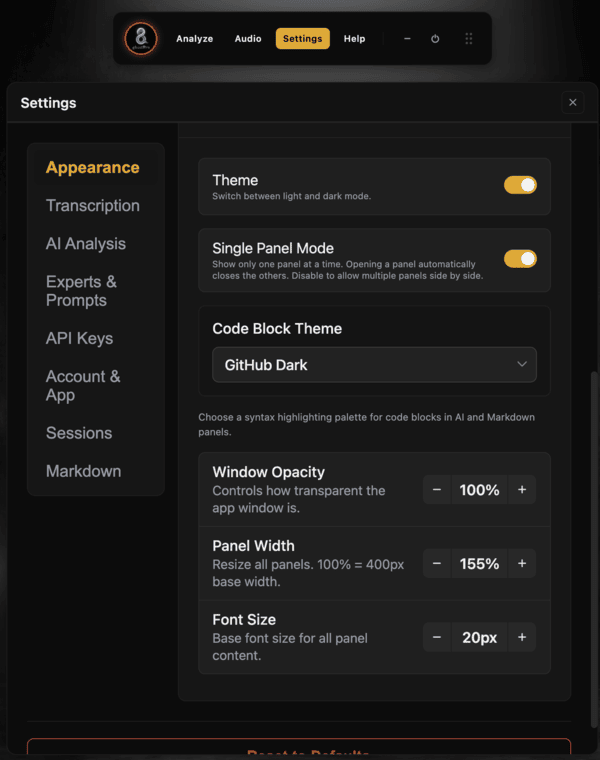
Adjust panel width and font size to make GhostBro easier to read during real work.
Reset to Defaults
If you experiment with the interface and want to return to the original setup, the Reset to Defaults button restores the default Appearance configuration.
This makes it safe to test different combinations. You can try a transparent window, larger text, wider panels, a different code theme, or light mode without worrying about breaking your setup.
Recommended Setup
For most users, a good starting point is:
User Mode: Rookie, until you are comfortable with the app
Keyboard Shortcuts: Enabled
Theme: Dark mode for long sessions
Single Panel Mode: Enabled for a cleaner workspace
Code Block Theme: GitHub Dark or One Dark
Window Opacity: 100% for readability, lower only when you need transparency
Panel Width: Increase if you read long AI responses often
Font Size: 16px to 20px depending on your screen and comfort
Final Thoughts
The Appearance section exists because GhostBro is not meant to be a rigid tool. It should adapt to how you work. Whether you want a clean beginner-friendly interface, a keyboard-first power-user setup, a transparent overlay, larger text, or a code theme that feels familiar, these settings give you control.
GhostBro is designed to stay practical, minimal, and focused. The Appearance settings help keep that experience personal without making the app complicated.