
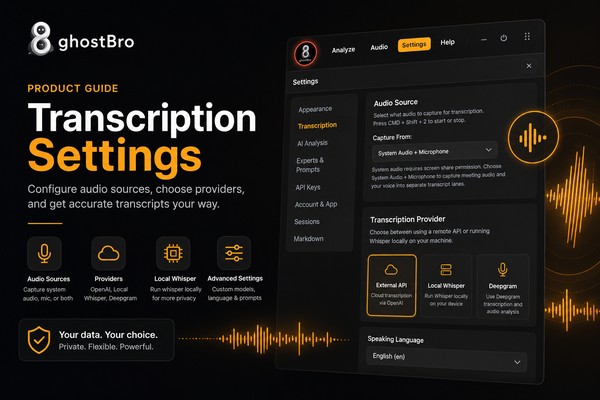
GhostBro Transcription Settings: How to Configure Audio, Providers, Local Whisper, OpenAI, and Deepgram
Transcription is one of the most important parts of GhostBro. Before AI can summarize a meeting, answer questions, or help you follow a technical discussion, GhostBro first needs clean and reliable text from your audio. The Settings → Transcription section gives you control over where audio comes from, which transcription provider is used, how local Whisper runs, and how much context the transcription engine receives.
This guide explains each Transcription setting in practical terms, so you can choose the best setup for privacy, accuracy, speed, and cost.
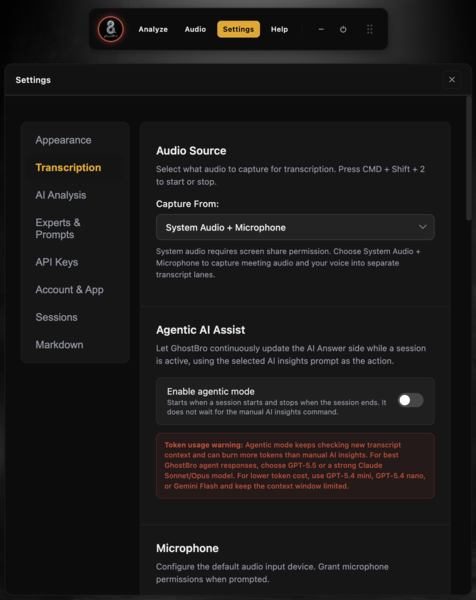
GhostBro Transcription settings start with audio capture and session behavior.
1. Choose what GhostBro should capture
The Audio Source setting controls what GhostBro listens to during a session. This is where you decide whether GhostBro should capture only your microphone, system audio, or both.
For meetings, interviews, and calls, the most useful option is usually System Audio + Microphone. This allows GhostBro to capture both sides of the conversation: the person speaking through your computer audio and your own voice through the microphone. When system audio is enabled, your operating system may ask for screen sharing or audio capture permissions. This is expected and required for GhostBro to access the meeting audio.
If you only want to transcribe your own voice, choose a microphone-only setup. This can be useful for notes, dictation-style usage, or testing transcription quality before a real session.
2. Select the microphone input
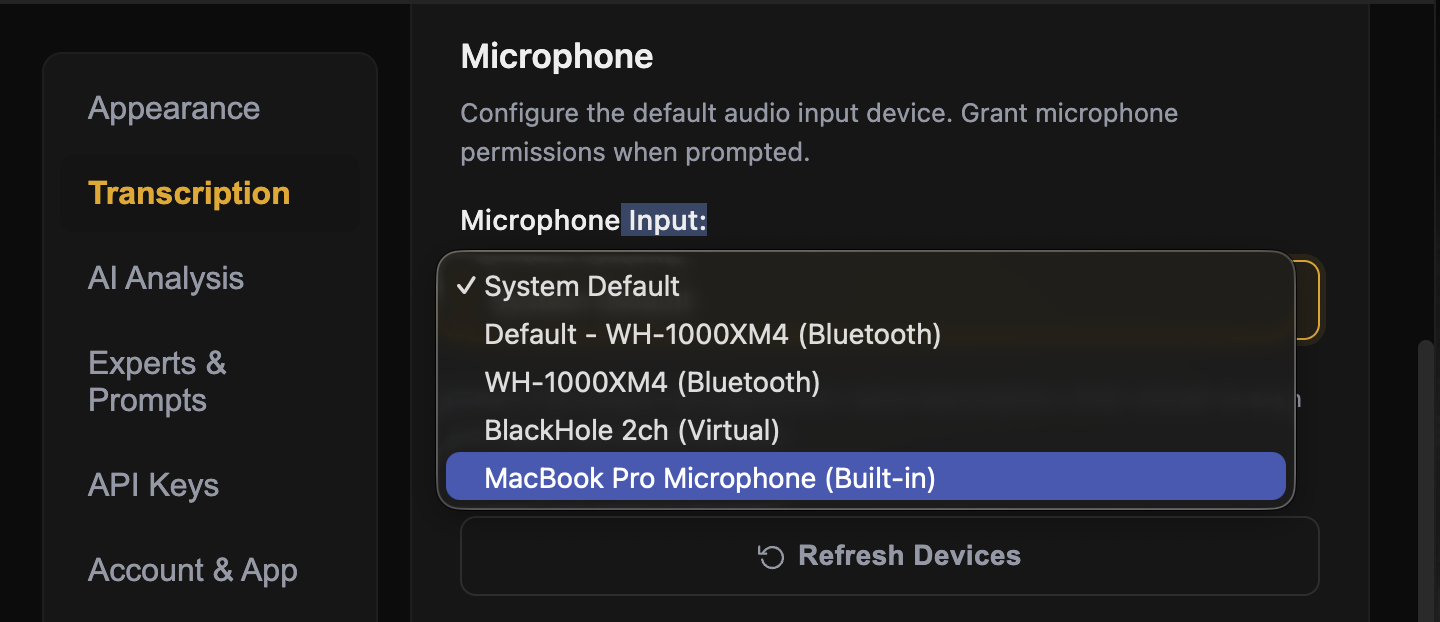
Select the microphone GhostBro should use for your side of the conversation.
The Microphone Input dropdown lets you choose the exact audio input device. You can use the system default microphone, a built-in MacBook microphone, Bluetooth headphones, or a virtual audio device such as BlackHole.
For best results, choose the microphone that gives the clearest voice signal. Built-in laptop microphones can work well in quiet rooms, but an external headset or dedicated microphone usually improves accuracy. If your device is not visible, use Refresh Devices after connecting it.
3. Choose a transcription provider
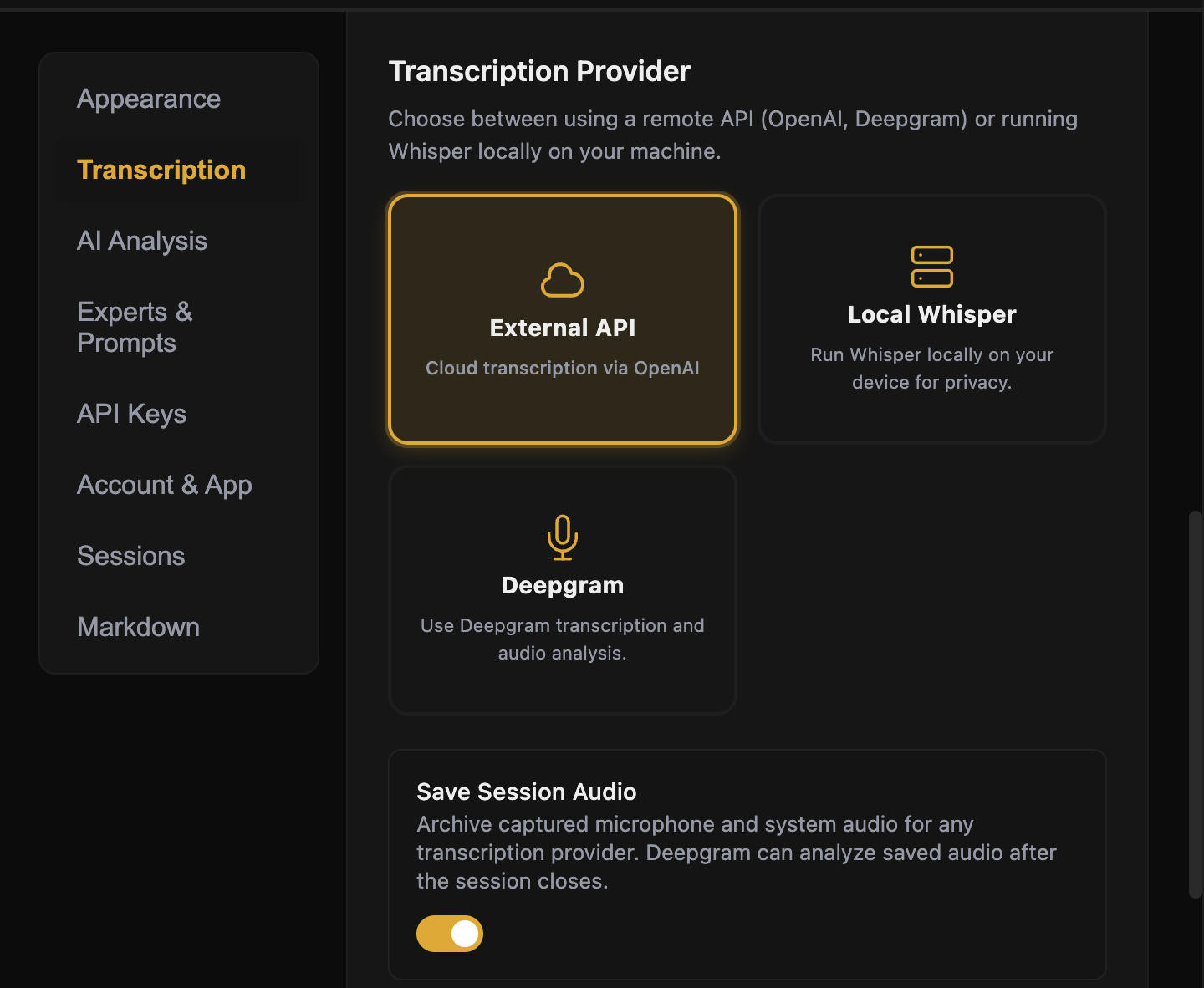
GhostBro supports multiple transcription providers depending on your needs.
GhostBro gives you three transcription provider options:
External API — use cloud transcription through providers such as OpenAI.
Local Whisper — run Whisper locally on your machine for better privacy and no external transcription calls.
Deepgram — use Deepgram transcription features, including formatting and optional audio analysis.
There is no single perfect provider for every user. If you want convenience and strong accuracy, an external API is often the easiest option. If privacy is the main priority, Local Whisper gives you more control because transcription runs on your own machine. If you want advanced speech configuration and post-session analysis features, Deepgram is a strong option.
4. External API transcription with OpenAI
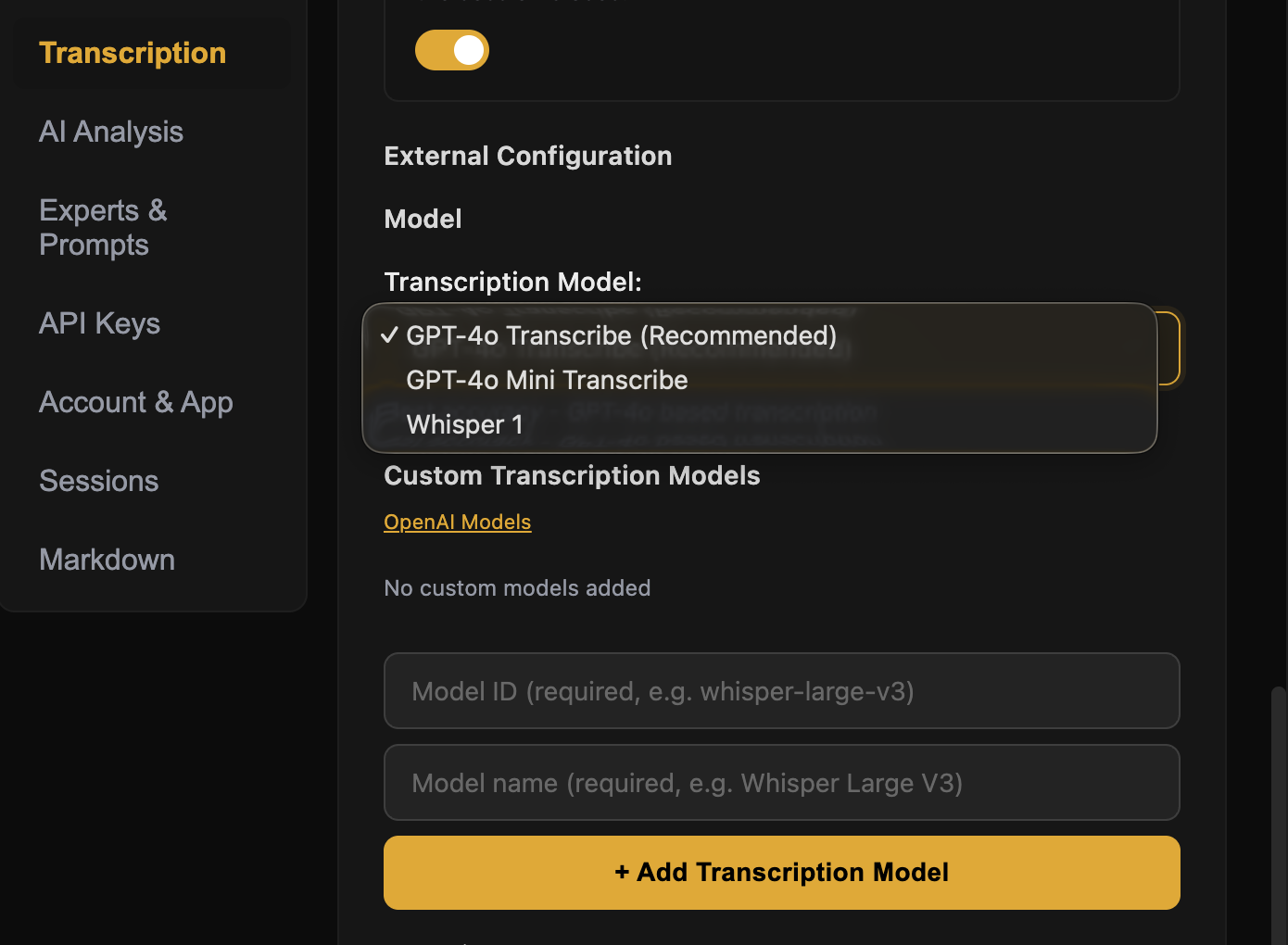
External API mode allows you to choose OpenAI transcription models.
When using External API, GhostBro lets you select a transcription model such as GPT-4o Transcribe, GPT-4o Mini Transcribe, or Whisper 1. This is usually the fastest path to good transcription quality because the processing happens through a remote provider instead of your local CPU.
This option is best when you want:
simple setup with minimal local configuration;
strong accuracy without downloading local models;
better performance on lower-powered computers;
quick switching between supported transcription models.
You can also add custom transcription models if your provider supports additional model IDs. Before choosing a model for daily use, check the official OpenAI transcription and speech pricing page: OpenAI transcription pricing .
A practical recommendation: use the stronger model when accuracy matters most, and use the mini model when you want to reduce cost for longer sessions.
5. Local Whisper transcription
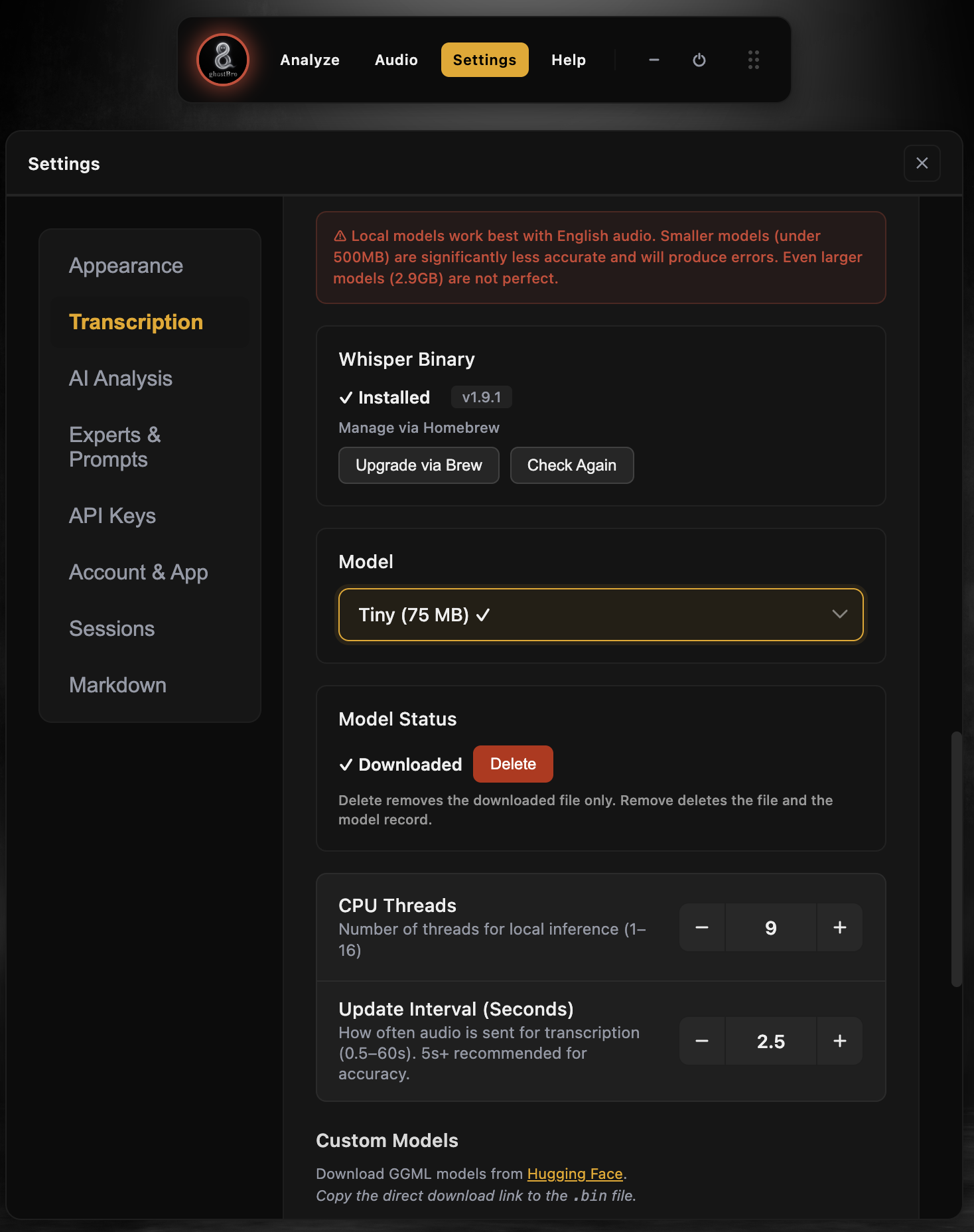
Local Whisper runs transcription directly on your device.
Local Whisper is designed for users who want more privacy and local control. Instead of sending audio to an external transcription API, GhostBro uses a local Whisper binary and a downloaded model file.
This is a good choice when you want to keep transcription on your machine, avoid remote transcription costs, or test GhostBro in a local-first workflow. The tradeoff is that local transcription depends heavily on your computer hardware and the model size you choose.
Smaller models are faster and lighter, but they are usually less accurate. Larger models are more accurate, but they require more disk space, more CPU resources, and more patience. GhostBro makes this tradeoff visible so you can choose the setup that fits your machine.
6. Install or update the Whisper binary
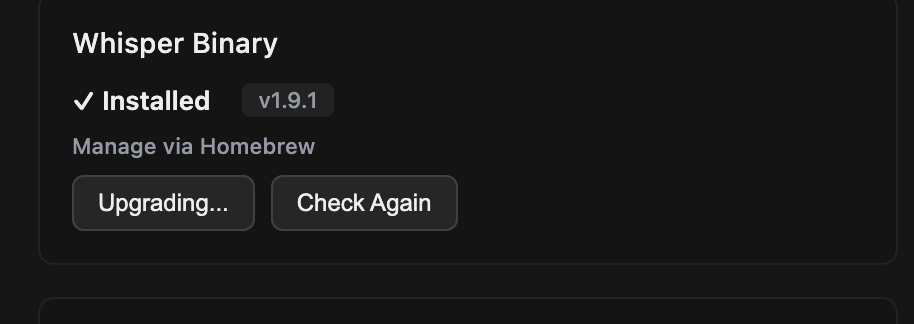
GhostBro can detect the installed Whisper binary and help you check or upgrade it.
The Whisper Binary section shows whether the required local Whisper binary is installed. On macOS, GhostBro can manage this through Homebrew. If the binary is already installed, you will see the installed version and options such as Upgrade via Brew or Check Again.
Keeping the binary updated is recommended because newer versions may include performance improvements, compatibility fixes, or better support for available models.
7. Choose the right local Whisper model
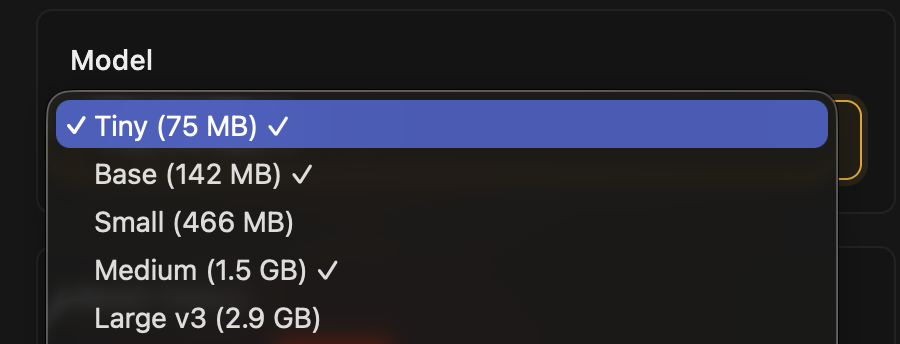
Choose a local Whisper model based on the balance between speed and accuracy.
GhostBro includes several local model options, from Tiny to Large v3. The model size directly affects transcription quality and performance.
Tiny — fastest and lightest, useful for testing, but less accurate.
Base — still lightweight, slightly better accuracy than Tiny.
Small — a better balance for simple local transcription.
Medium — stronger accuracy, but requires more resources.
Large v3 — best accuracy among these options, but slower and heavier.
For important meetings, do not judge Local Whisper only by the Tiny model. Tiny is useful for quick checks, but it can produce mistakes, especially with background noise, accents, fast speech, or non-English audio. If accuracy matters, test at least Small, Medium, or Large v3 and compare the results.
8. Tune local performance: CPU threads and update interval
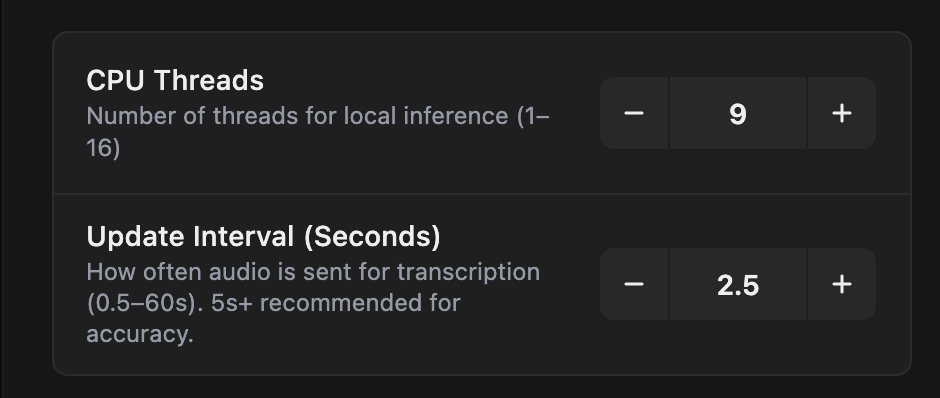
CPU threads and update interval help you tune local transcription performance.
Local Whisper gives you two important performance controls:
CPU Threads controls how many CPU threads GhostBro can use for local inference. Higher values can improve speed, but may also increase CPU usage and fan noise.
Update Interval controls how often audio is sent for transcription. Shorter intervals feel more real-time, while longer intervals can improve stability and accuracy.
A practical starting point is to keep the update interval at a moderate value, then lower it only if your machine handles transcription smoothly. If the transcription feels unstable or fragmented, increase the interval slightly.
9. Add a custom local Whisper model
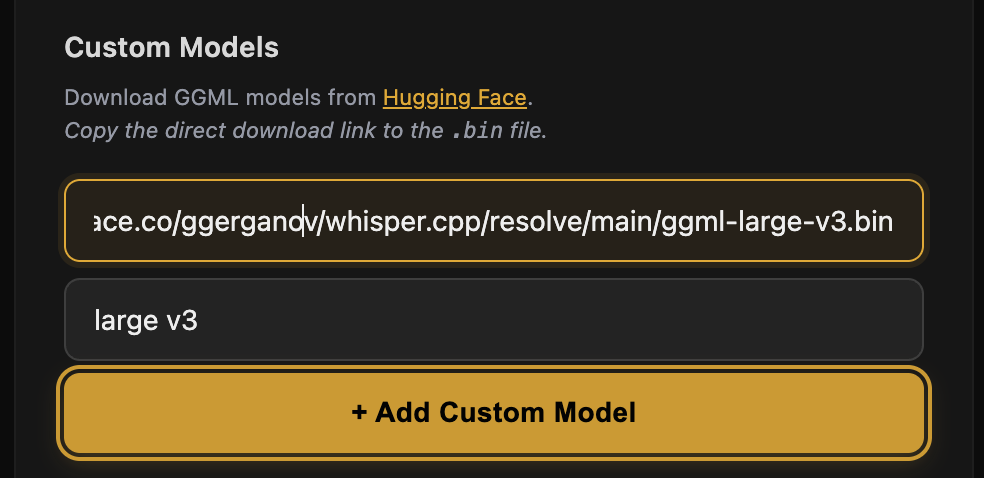
You can add a custom GGML Whisper model by pasting a direct .bin download link.
GhostBro also supports custom local models. This is useful if you want to use a specific GGML model that is not already listed in the default dropdown.
To add the Large v3 model used in this tutorial, copy the direct model link from Hugging Face: ggml-large-v3.bin on Hugging Face .
In GhostBro, paste the direct download link into the custom model field, give the model a clear name such as large v3, then click Add Custom Model. After the model is added and downloaded, it becomes available for local transcription.
Use larger custom models only if your machine can handle them comfortably. They can improve accuracy, but they also require more disk space and processing power.
10. Set the speaking language and context prompt
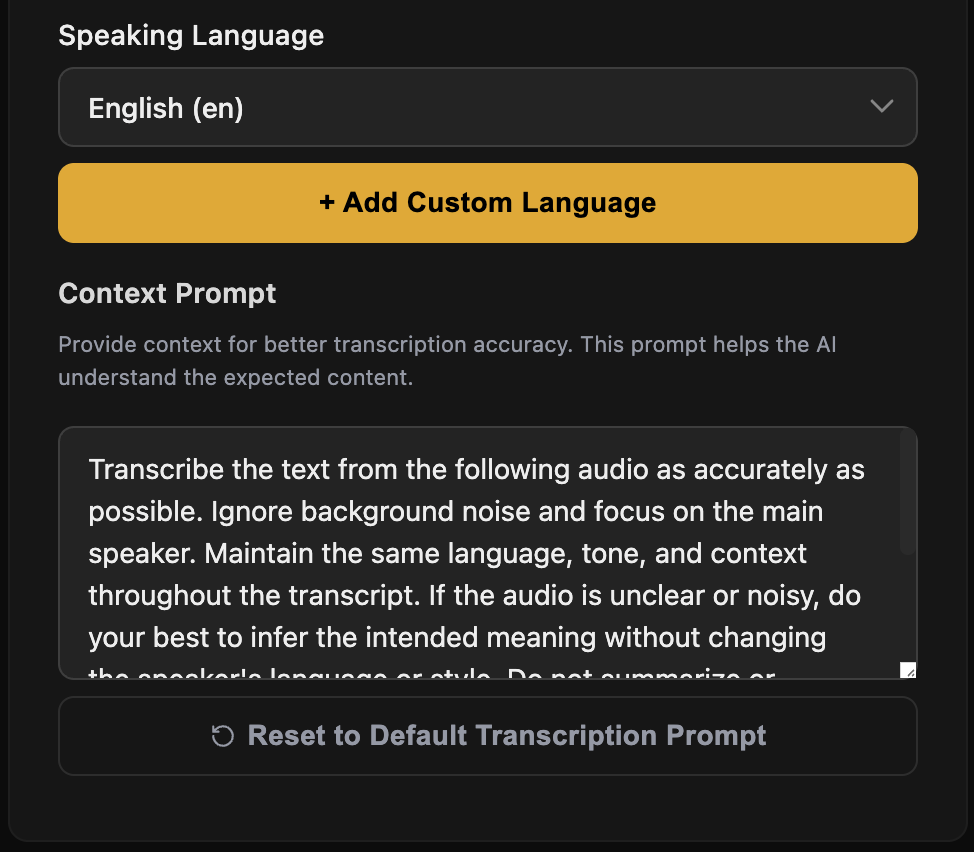
Language and context prompt settings help the transcription engine understand the expected audio.
The Speaking Language setting tells GhostBro what language to expect. This helps the transcription provider focus on the correct language and can improve consistency, especially when the conversation is not in English.
You can also add a Custom Language if the language you need is not listed.
The Context Prompt is especially useful. It gives the transcription engine additional instructions about the type of audio it should expect. For example, you can tell it to focus on the main speaker, ignore background noise, preserve the original language, or expect technical terms related to programming, product demos, sales calls, or interviews.
A good context prompt can improve results when the audio contains domain-specific vocabulary. For example, if you are using GhostBro during a technical interview, you can mention that the conversation may include terms like Ruby on Rails, PostgreSQL, Docker, Redis, API endpoints, background jobs, or system design.
11. Deepgram transcription configuration
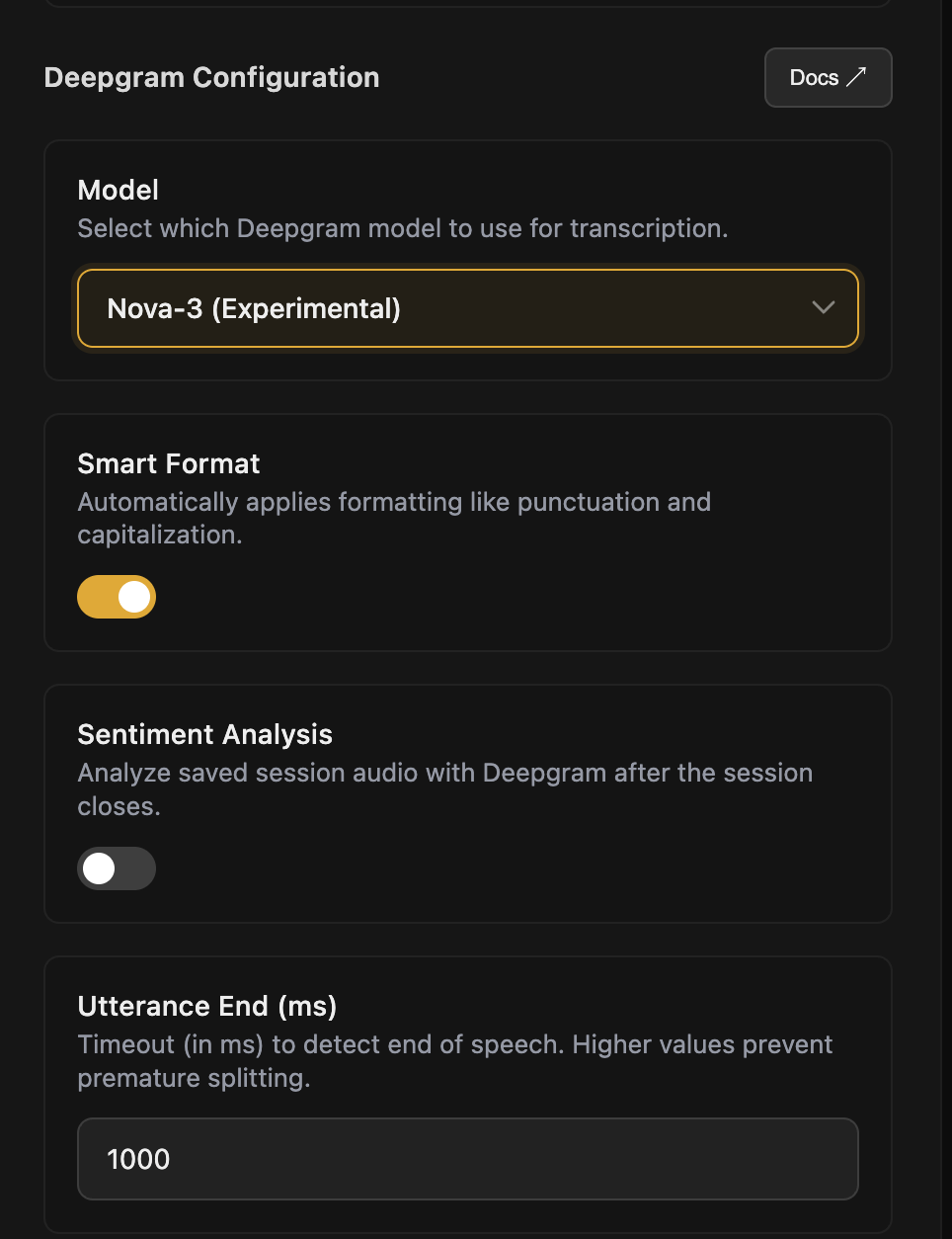
Deepgram provides additional transcription controls and optional audio analysis settings.
When you choose Deepgram, GhostBro exposes provider-specific settings such as model selection, smart formatting, sentiment analysis, and utterance end detection.
The model dropdown lets you select a Deepgram model such as Nova-3. For the latest model availability, languages, and recommendations, use the official Deepgram documentation: Deepgram models and languages overview .
Smart Format automatically improves the transcript formatting with punctuation, capitalization, and similar readability improvements. In most cases, it is worth keeping enabled.
Sentiment Analysis can analyze saved session audio after the session closes. This can be useful for reviewing the emotional tone of a conversation, but it may not be necessary for every workflow.
Utterance End controls how long Deepgram waits before deciding that a speaker has finished talking. A higher value can reduce premature splitting, especially when speakers pause often or think between sentences.
12. Add a custom Deepgram model
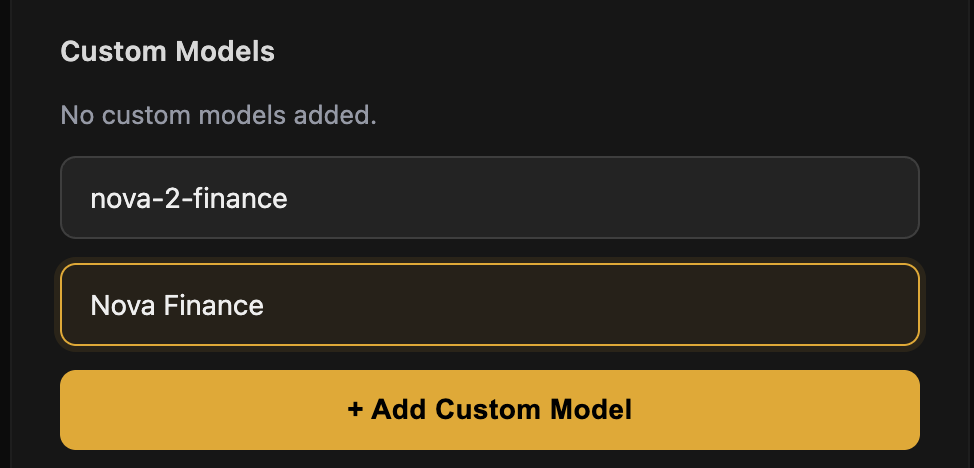
Custom Deepgram models can be added by model ID and display name.
GhostBro also allows custom Deepgram models. This is useful when Deepgram provides a specialized model for your use case, industry, or language setup.
To add one, enter the model ID exactly as required by Deepgram, then add a readable display name. For example, you might use a model ID such as nova-2-finance and display it as Nova Finance.
Always confirm the correct model ID in the Deepgram documentation before adding a custom model. A wrong model ID can cause transcription errors or failed requests.
Recommended setups
Best simple setup
Use External API with a recommended OpenAI transcription model. This is the easiest option for most users because it requires less local configuration and usually provides strong results.
Best privacy-focused setup
Use Local Whisper with a model your computer can run comfortably. Start with Small or Medium, then test Large v3 if you need better accuracy and your machine can handle it.
Best setup for advanced speech configuration
Use Deepgram if you want provider-level speech settings such as smart formatting, utterance end control, and optional analysis of saved session audio.
Important note about accuracy
Transcription quality depends on more than the selected provider. Microphone quality, background noise, speaker accents, language, meeting audio quality, and model size all affect the final transcript. For important calls, test your setup before relying on it in a live session.
If the transcript looks inaccurate, try these steps:
switch to a clearer microphone;
choose a stronger transcription model;
increase the local Whisper model size;
adjust the update interval for local transcription;
set the correct speaking language;
add a better context prompt with expected terms and conversation type.
Final thoughts
The Transcription settings in GhostBro are designed to give you control. You can keep things simple with an external API, run transcription locally with Whisper, or use Deepgram for advanced speech features. The right choice depends on how you balance privacy, accuracy, speed, and cost.
Start with the provider that matches your current workflow, run a short test session, then adjust the model, microphone, language, and prompt until the transcript feels reliable. A clean transcript gives GhostBro better context, and better context leads to more useful AI insights during your sessions.