
OpenAI Setup Guide for GhostBro: Faster AI Assistance During Meetings
Remote meetings move quickly.
Whether you’re participating in a technical interview, discussing requirements with a client, attending a team meeting, presenting to stakeholders, or joining a sales call, it’s easy to miss important details while trying to stay engaged in the conversation.
That’s exactly why GhostBro was built.
GhostBro is an AI-powered desktop application that helps you stay focused on the conversation while AI works in the background to analyze discussions, generate insights, answer questions, and adapt to your workflow.
In this guide, you’ll learn how to create an OpenAI API key and connect it to GhostBro.
The entire setup process takes only a few minutes.
Why Connect OpenAI to GhostBro?
GhostBro supports multiple AI providers, including free and self-hosted alternatives.
While those options can work well depending on your needs, many users prefer OpenAI because of its speed, reliability, and response quality.
By connecting your OpenAI API key, GhostBro can:
Generate intelligent responses based on meeting context
Create summaries of conversations
Extract action items and key decisions
Answer questions related to the discussion
Assist during technical interviews
Translate content between languages
Analyze conversations from multiple perspectives
Help with brainstorming and decision-making
Adapt outputs to your personal workflow
However, that’s only a small part of what GhostBro can do.
GhostBro Is Built Around Customization
Most AI tools give you a single assistant with limited configuration options.
GhostBro takes a different approach.
The platform is designed to be heavily customizable, allowing you to create an AI experience tailored specifically to your needs.
Users have full control over:
Experts
Prompts
Templates
Instead of relying on a single assistant personality, you can create specialized experts for different situations.
Examples include:
Technical Interview Expert
Ruby on Rails Expert
Product Manager Expert
Business Analyst Expert
Marketing Expert
Customer Support Expert
Sales Expert
Language Tutor Expert
Or completely custom experts built around your own processes.
This flexibility allows GhostBro to adapt to your workflow instead of forcing you to adapt to the software.
If you’d like to explore advanced customization, check out our related articles covering Experts, Templates, and Prompt management.
Why GhostBro Prefer OpenAI
GhostBro supports multiple AI providers, and free alternatives can be a great starting point.
However, if response time and quality are important to you, OpenAI is usually the preferred option.
In our day-to-day usage, OpenAI models generally provide:
Faster response times
Better understanding of meeting context
More accurate summaries
Stronger reasoning capabilities
Better performance during technical interviews
More consistent answers during long conversations
Free alternatives can certainly work, but they may respond more slowly, provide less consistent results, or struggle with complex requests.
If you’re using GhostBro during a job interview, client presentation, important sales call, or any high-stakes conversation, having quick and reliable responses can make a noticeable difference.
For users who prioritize speed and accuracy, OpenAI is typically the recommended option.
Privacy and Ownership First
Privacy has been one of GhostBro’s core principles since day one.
Unlike many AI products that route everything through their own servers, GhostBro follows a direct-connect approach.
When using OpenAI, requests are sent directly from your machine to OpenAI.
There is no GhostBro server acting as a middleman.
There is no proxy layer.
There is no hidden relay infrastructure.
Your requests go directly to the AI provider you choose.
Additionally, GhostBro stores its configuration locally on your machine, including:
Experts
Templates
Prompts
Application settings
You remain in control of your setup and your data.
This philosophy can be summarized in a simple sentence:
Owning is better than renting.
You choose the provider.
You control the prompts.
You manage the experts.
You customize the workflow.
You own the configuration.
Step 1: Create an OpenAI Account
If you don’t already have an account, visit:
Click Sign Up and create an account using:
Email
Google
Microsoft
Apple
Once registration is complete, you’ll gain access to the OpenAI Platform Dashboard.
Step 2: Configure Billing
Before generating an API key, you’ll need to configure billing.
From the dashboard:
Open Settings
Navigate to Billing
Add a payment method
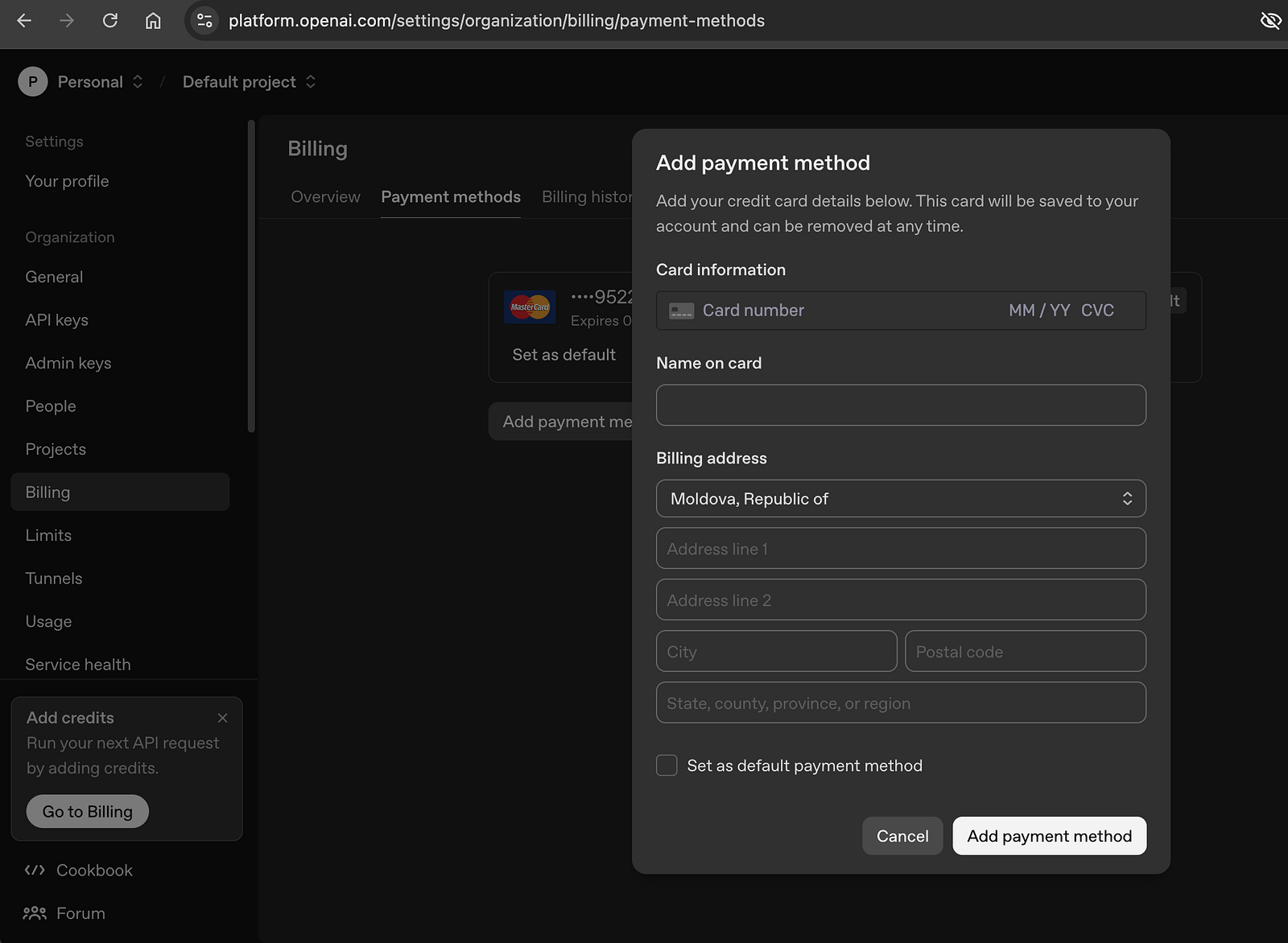 Add Payment Method
Purchase credits or configure your preferred billing setup
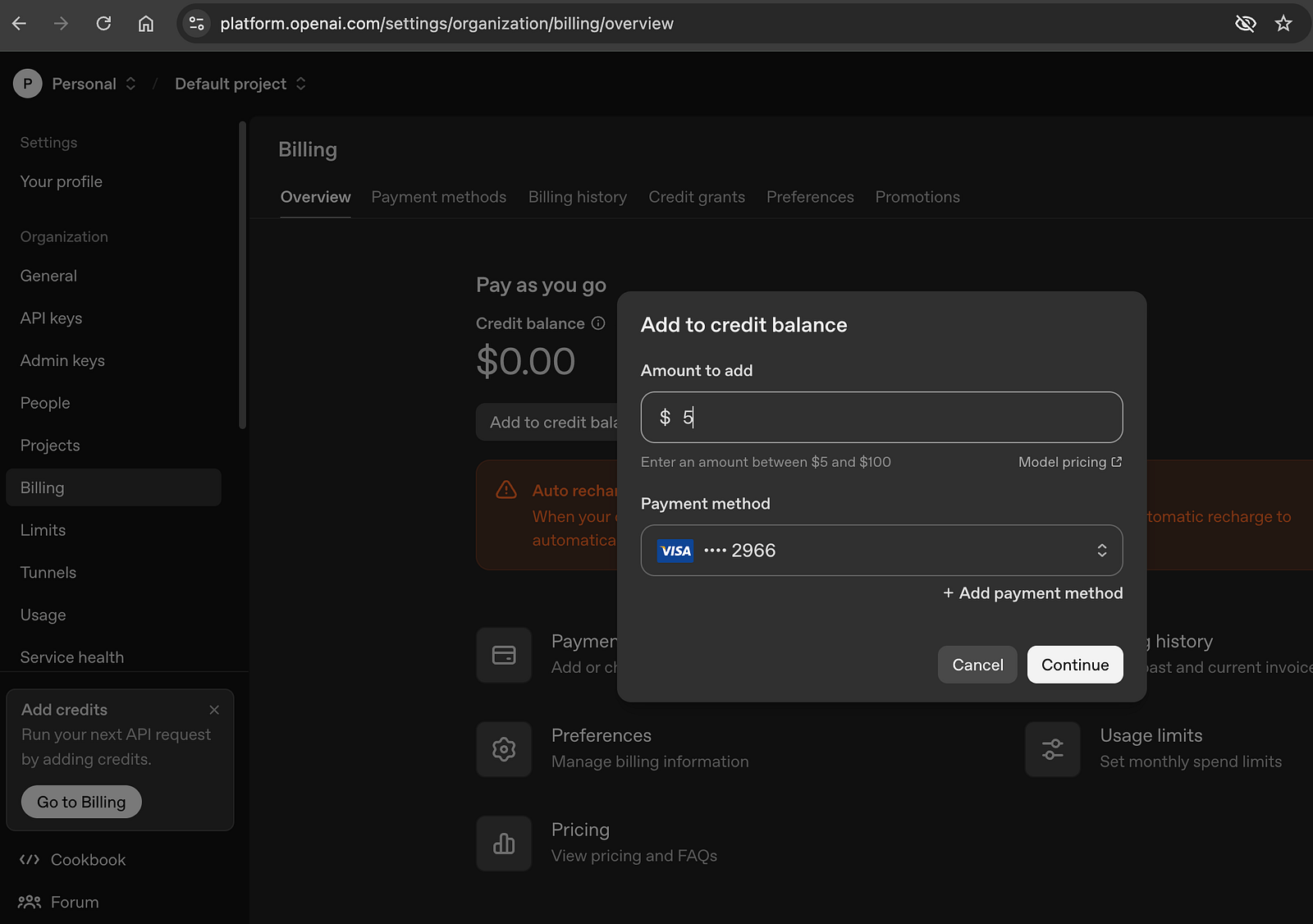 Add credits
It’s important to understand that OpenAI API usage is billed separately from a ChatGPT subscription.
Having ChatGPT Plus does not automatically include API access.
Step 3: Generate an API Key
Once billing is active:
Open the OpenAI Dashboard
Navigate to API Keys
Click Create New Secret Key
Give the key a recognizable name
For example:
GhostBro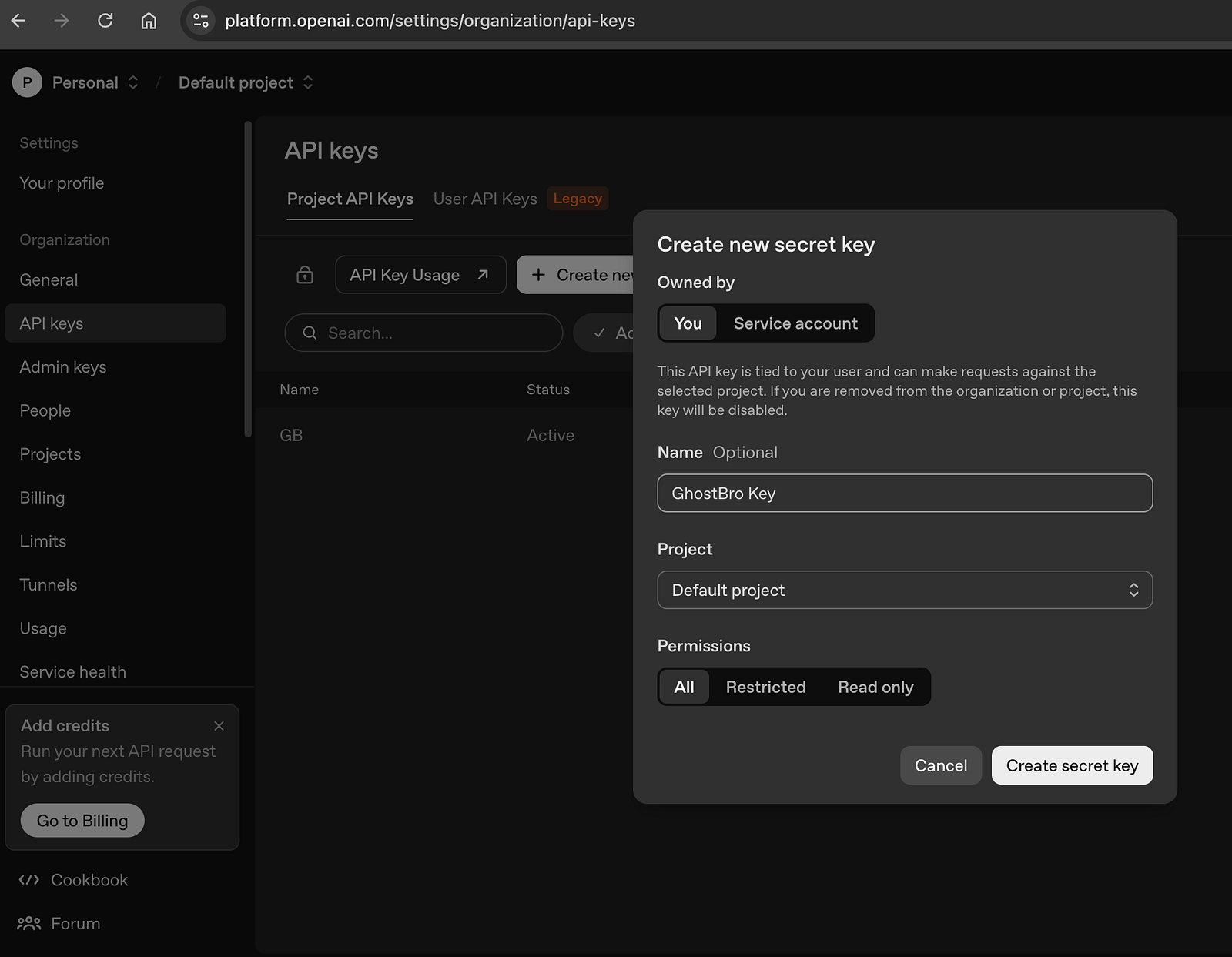 Create Secret Key
Click Create Secret Key
The generated key will look similar to:
sk-xxxxxxxxxxxxxxxxxxxxxxxxxxxxxxxxxxxxxxxxCopy it immediately.
OpenAI only displays the full key once.
After closing the dialog, the complete key will no longer be visible.
Step 4: Open GhostBro Settings
Launch GhostBro.
Navigate to Settings (or press cmd/ctrl + 3)
Locate the field labeled OpenAI API Key.
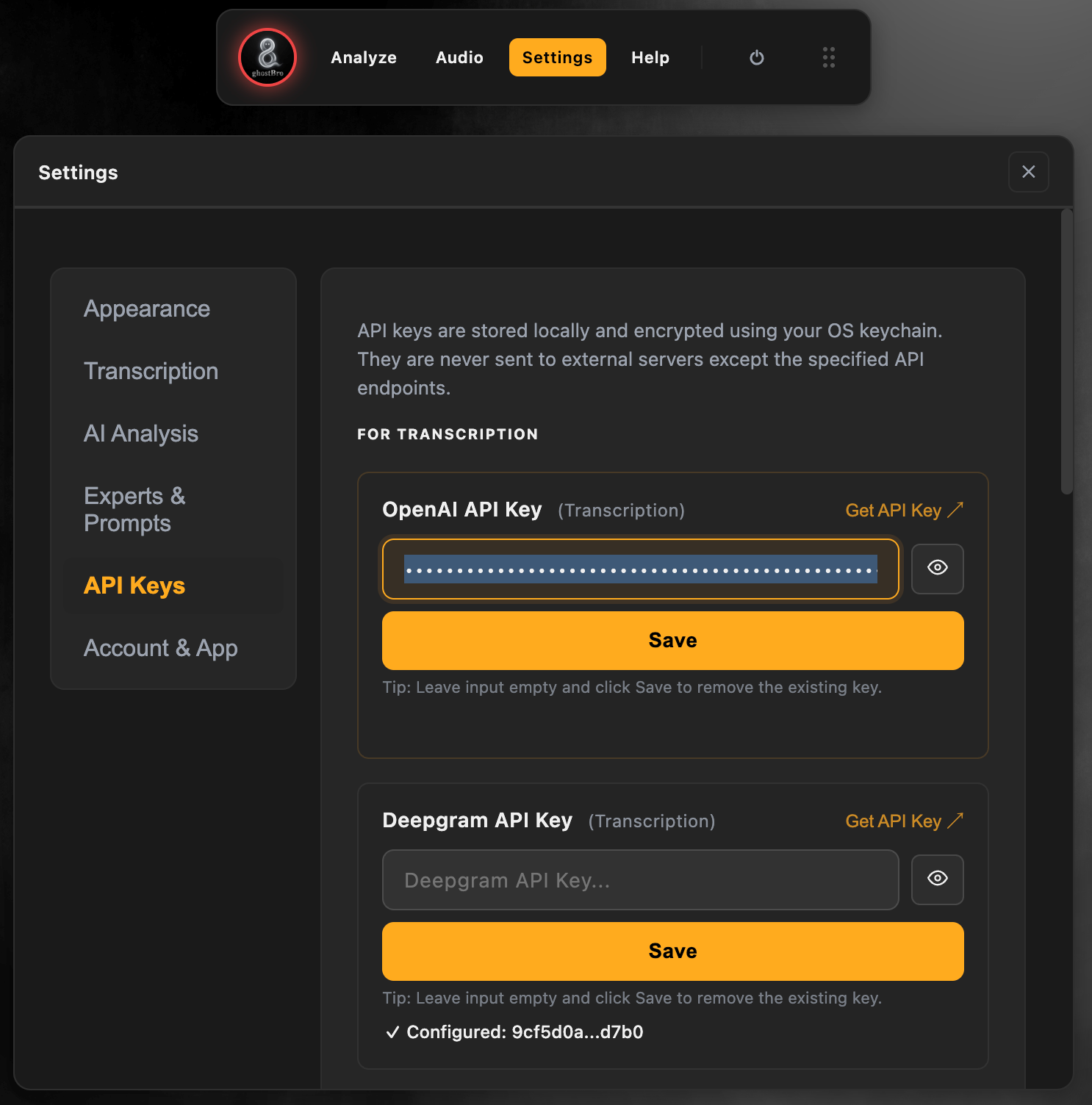 Set OpenAI API key
GhostBro will securely store the configuration locally on your machine.
No additional setup is required.
Step 6: Verify Everything Works
After saving the configuration:
Start GhostBro
Make sure that you selected the correct Transcription provider (External API — Cloud transcription via OpenAI)
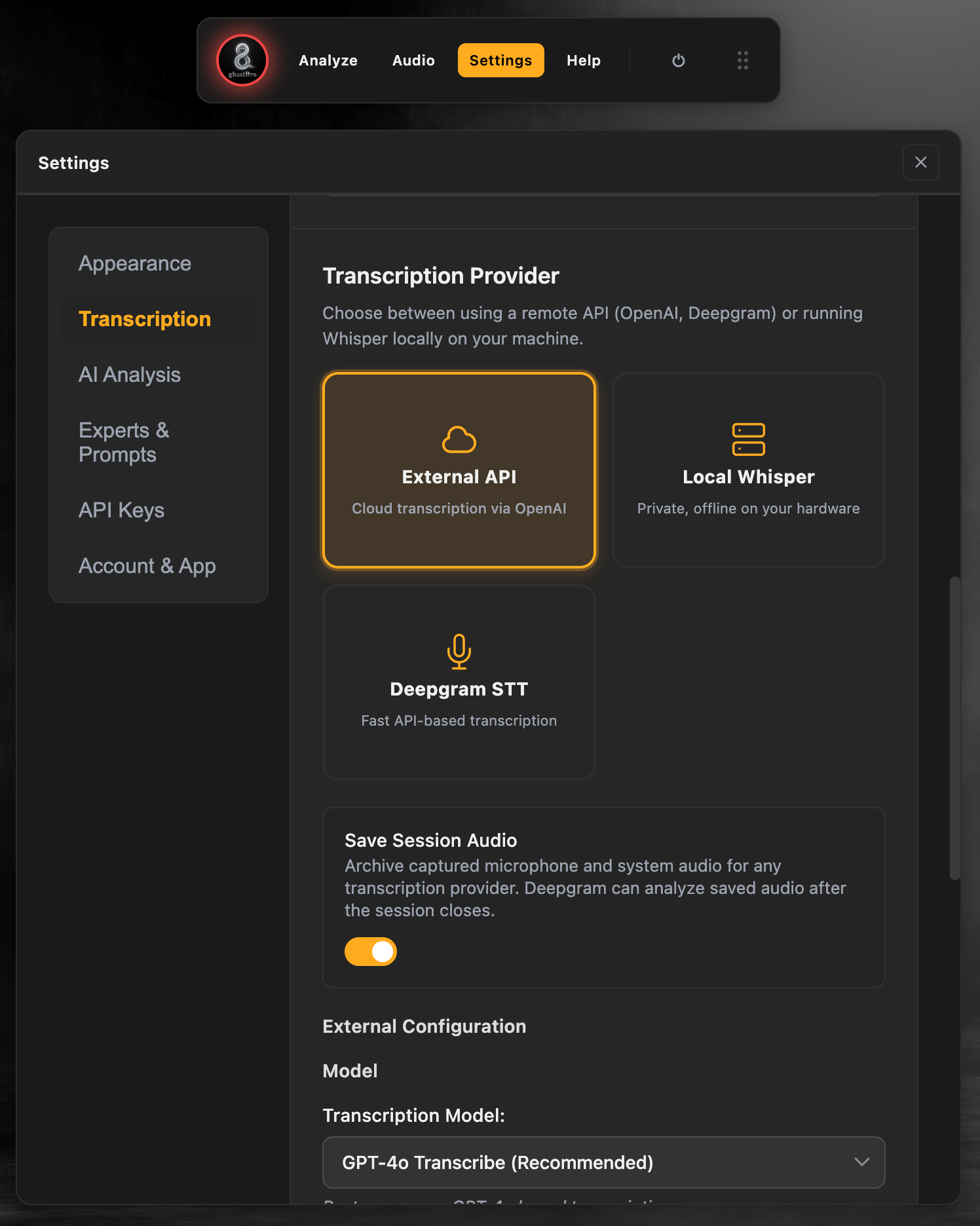 select OpenAI transcript provider
If you want to transcribe audio that you hear (system audio) and your microphone then you should choose the correct Audio Source:
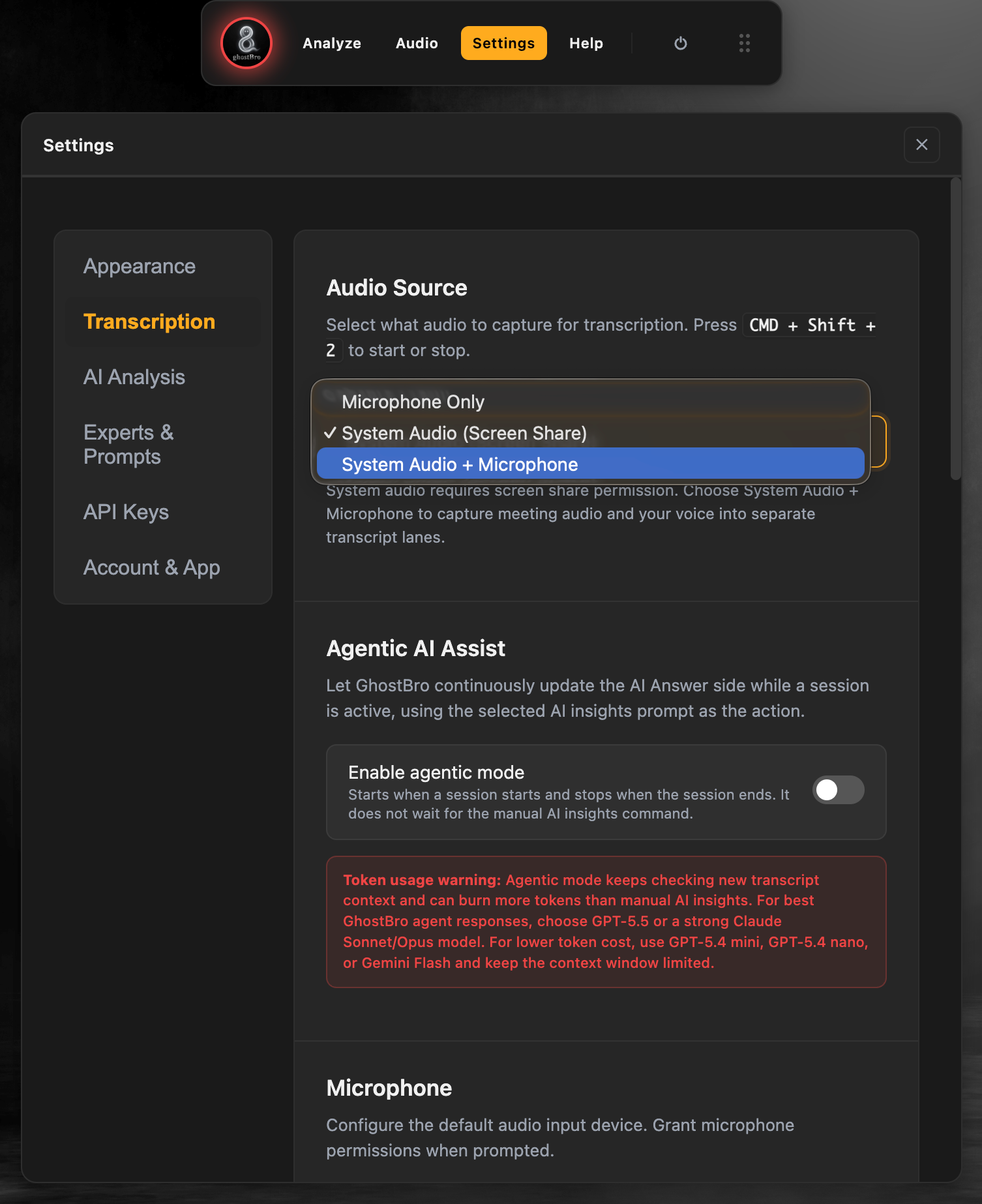 set Audio Source
Join a meeting or open an youtube video
Open the Audio panel(or by shortcut cmd/ctrl+2)
Click Record button (or press cmd/ctrl+shift+2) and play the youtube video
For example:
If everything is configured correctly, GhostBro will start transcribing.
You can now access all OpenAI-powered capabilities available within the application.
Security Best Practices
Your OpenAI API key should be treated like a password.
We recommend:
Never sharing your API key publicly
Never posting screenshots containing your key
Never committing API keys to Git repositories
Using separate keys for different applications when appropriate
Revoking and replacing keys immediately if they become exposed
If you suspect your key has been compromised, revoke it from the OpenAI dashboard and generate a new one.
Monitoring Usage and Costs
OpenAI provides detailed usage information through its dashboard.
You can:
Monitor API consumption
Track spending
Review request activity
Set spending limits
Manage API keys
This makes it easy to stay in control of costs and avoid unexpected charges.
Troubleshooting
Invalid API Key
Verify that:
The entire key was copied correctly
No extra spaces were included
The key has not been revoked
Billing Issues
Verify that:
Billing is configured correctly
Your account has available credits
No spending limits have been reached
GhostBro Doesn’t Respond
Check that:
OpenAI is enabled in GhostBro settings
The API key was saved successfully
Your internet connection is active
Final Thoughts
GhostBro was created to help professionals perform better during remote conversations without losing focus on what matters most: the discussion itself.
While GhostBro supports multiple AI providers, OpenAI is often the preferred choice for users who need fast, reliable, and high-quality responses during live conversations.
But the real power of GhostBro isn’t just the AI model behind it.
It’s the ability to customize experts, prompts, templates, and workflows to match your own way of working.
Whether you’re preparing for a technical interview, participating in client meetings, attending sales calls, conducting research, or managing projects, GhostBro adapts to your workflow — not the other way around.
Setup takes only a few minutes.
Once connected, you’re ready to build your own AI-powered workspace.
Check our latest product — Fenix discounts a chrome extension that shows you current discounts.